 Podsteps
How Podsteps works
A quick tour of what you get after you sign up. These are real screens, shown with an example business.
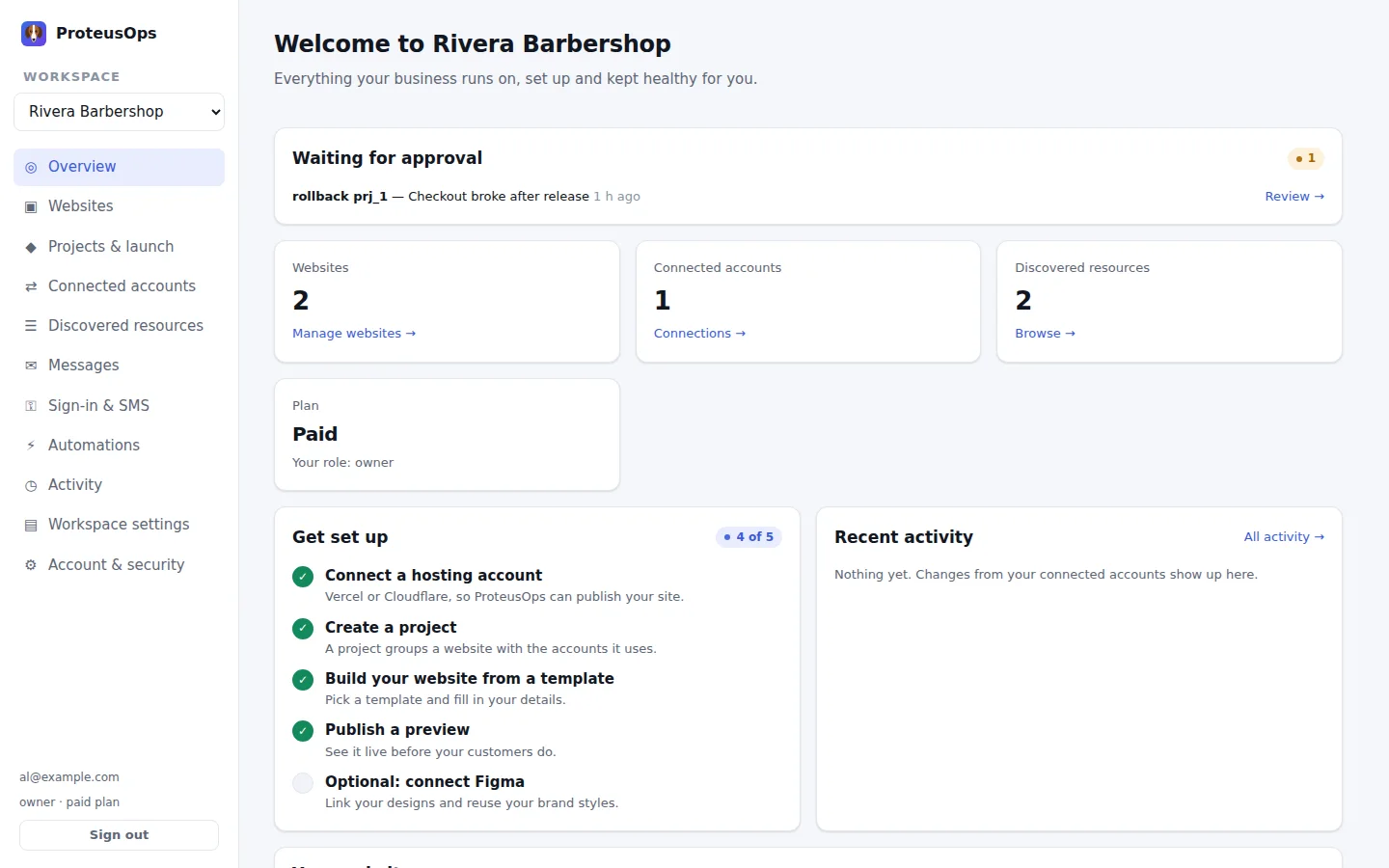
Everything in one place
A checklist walks you from a new account to a published site. Anything that needs an owner's approval waits at the top, and changes in your connected accounts show up as activity.
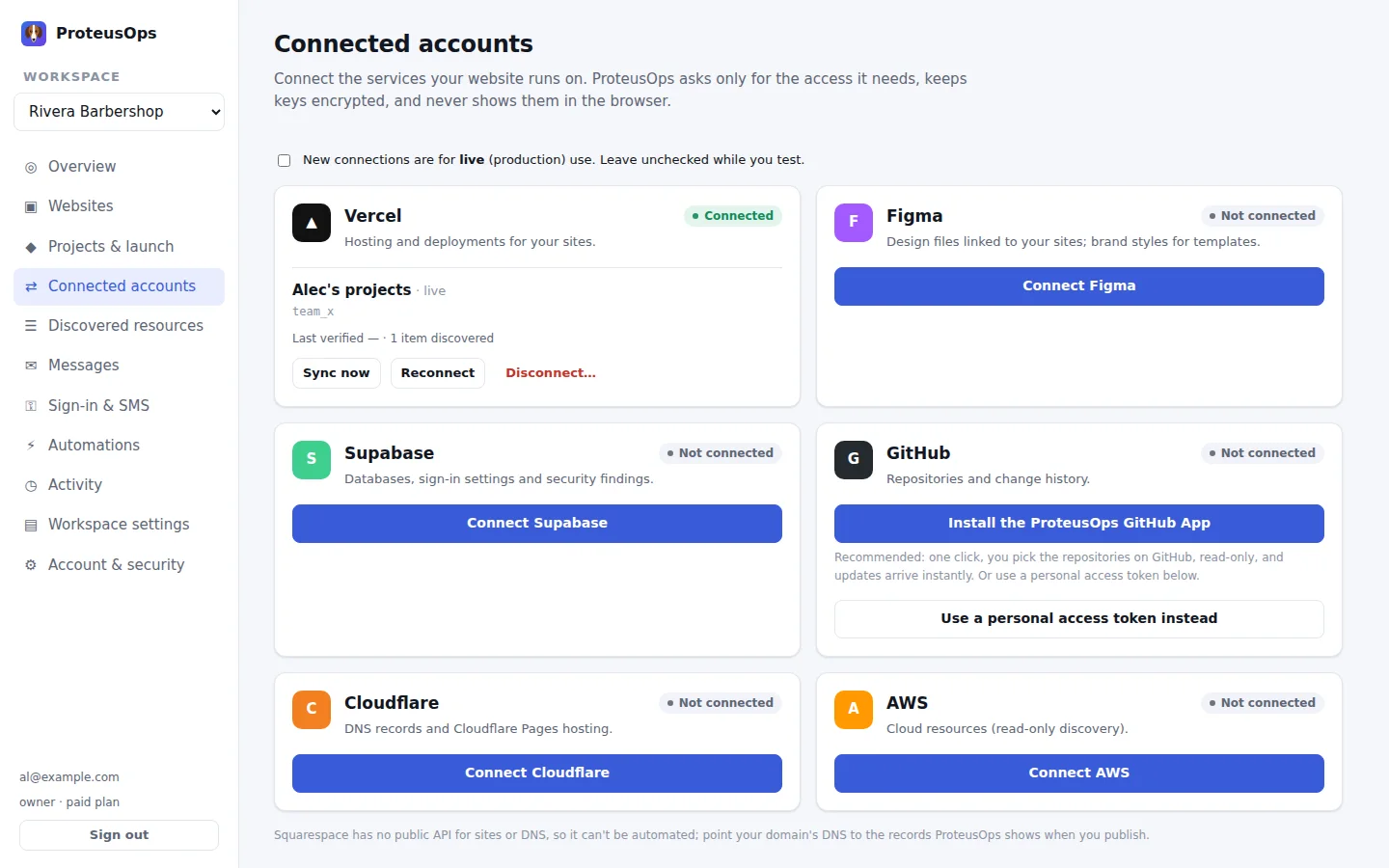
Connect accounts without hunting for keys
Vercel, Figma, Supabase and the GitHub App use their own approval screens. Cloudflare and AWS open the right page with the permissions filled in; you paste one value into a masked box and Podsteps verifies it.
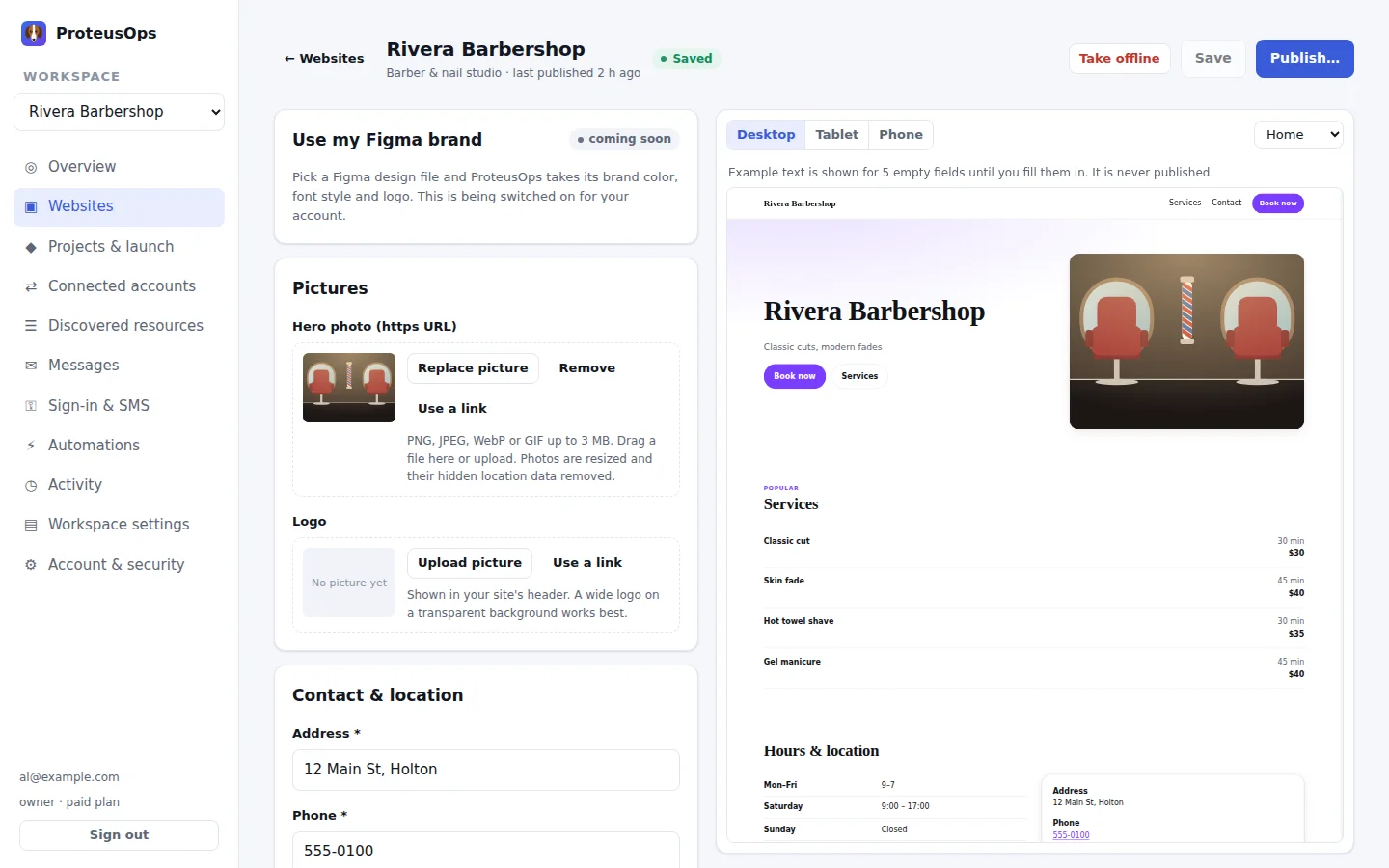
Edit with a live preview
Pick one of eleven templates, then fill in plain text boxes. Upload pictures and a logo, choose a color and font, and watch the real site update on desktop, tablet and phone. Try the templates.
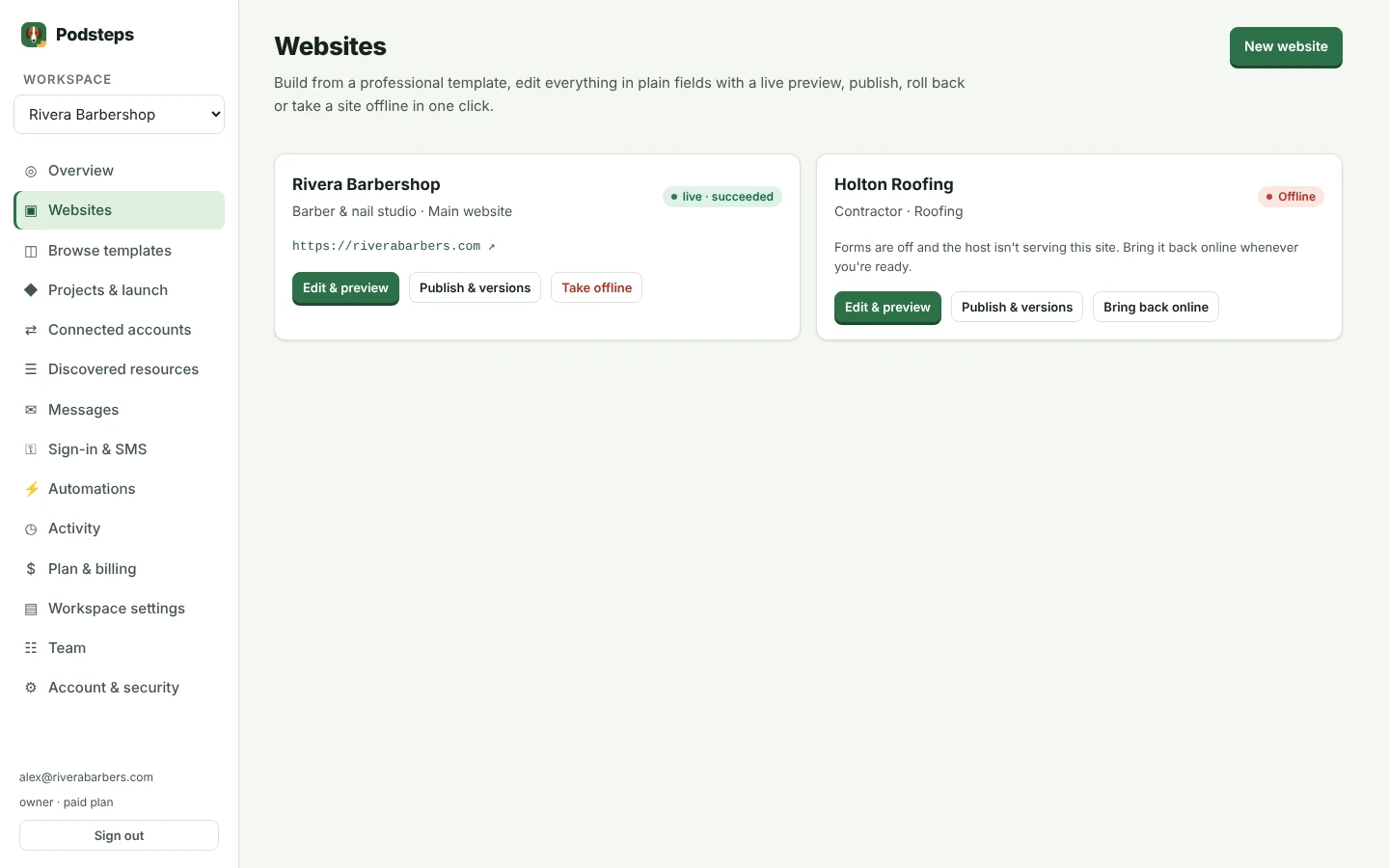
Publish, restore, or take it offline
Publish a preview, then go live on your domain with HTTPS. Every version is kept, so you can restore any of them in one click, or take the site offline instantly if you need to.
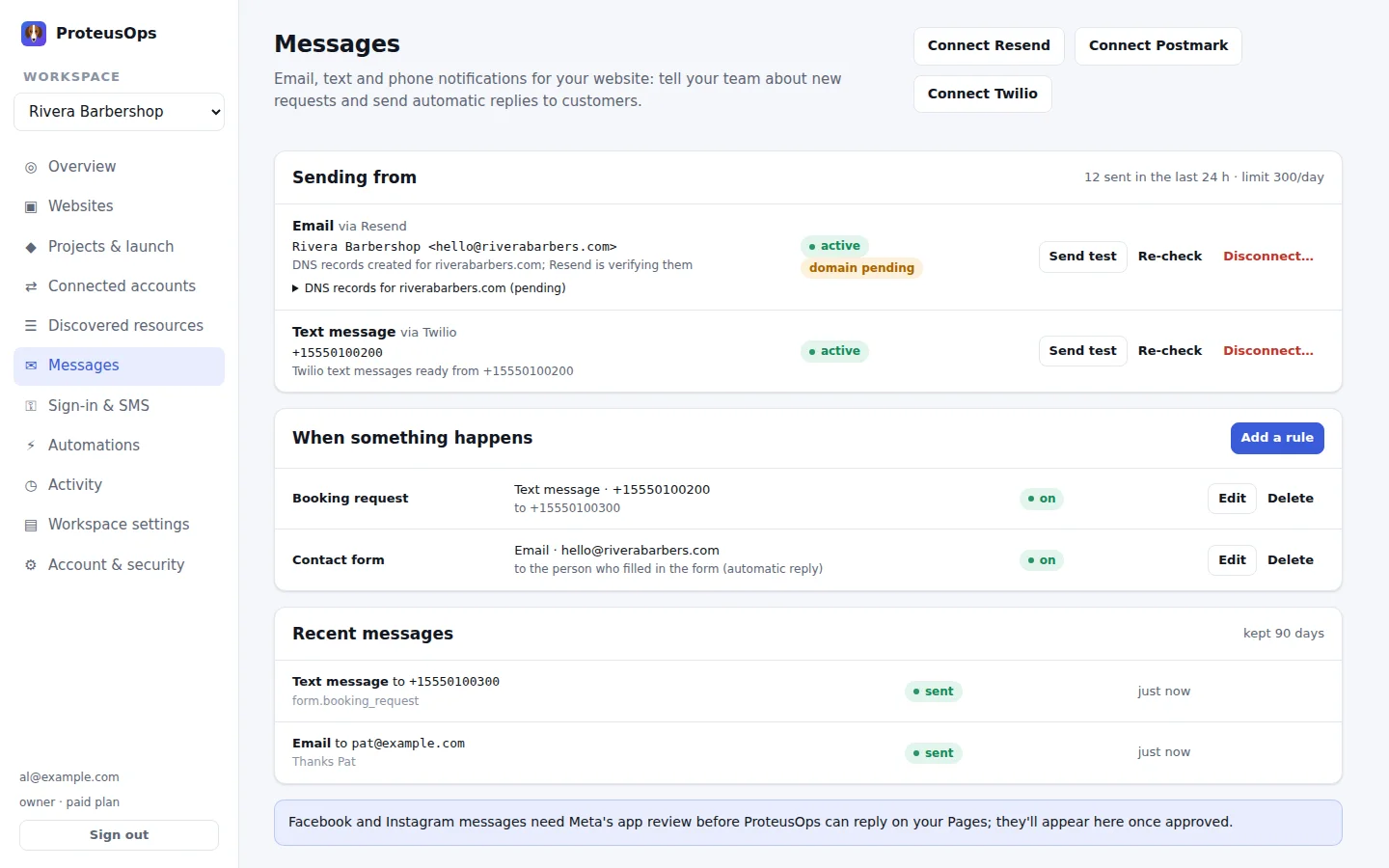
Requests reach you, customers hear back
Booking, quote and contact requests land in your inbox. Send email from your own domain and text messages through Twilio, with automatic replies and rules you can turn on and off.
Bring your existing projects
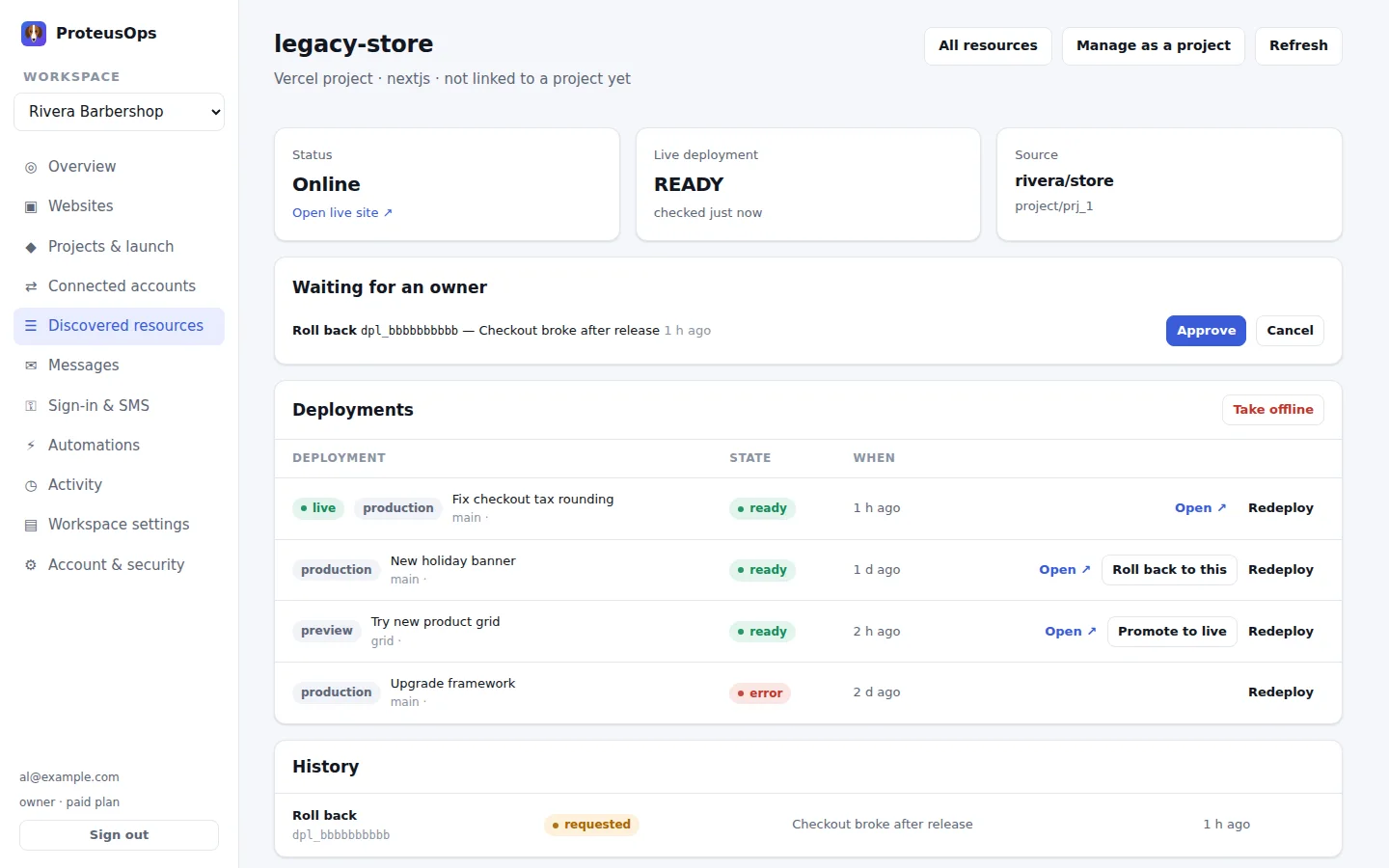
Projects you already host on Vercel or Cloudflare Pages show up automatically. See deployments, roll back, promote a preview, redeploy or take a project offline, with owner approval for risky steps.
Try it yourself
It takes a few minutes to get a first preview online.
Get startedBrowse templates